
If you are already logged into your Account Management Panel and want to update your password, you can do it without going through the reset flow. The process takes under two minutes and does not require contacting support.
Not logged in? If you cannot access your account, use the AMP password reset form instead.
Why You Should Update Your AMP Password Regularly
Your AMP credentials control access to your billing information, hosted domains, and account contact details. That makes it a higher-value target than a standard site login. Security professionals generally recommend rotating passwords on sensitive accounts every 90 days, particularly if you use a shared computer or a password you have reused elsewhere.
Changing your AMP password does not affect your cPanel login, WordPress admin credentials, or email passwords. Those are managed separately.
How to Change Your AMP Password From Inside Your Account
- Log into your AMP dashboard.
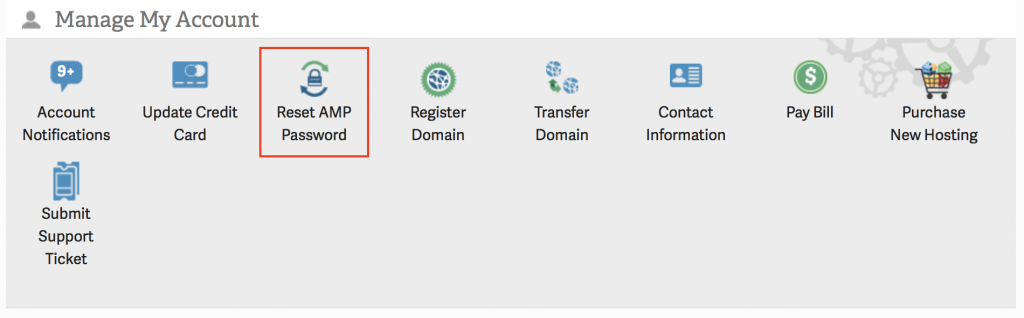
- Under Manage My Account, click the Reset AMP Password button. Alternatively, hover over My Account in the top navigation and select Login & Security.
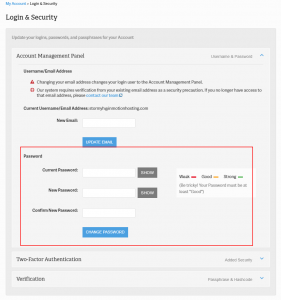
- Enter your current password in the Current Password field.
- Enter your new password, in the New Password field.
- Click Update Password.
You will be redirected to a confirmation page that reads: “Your account password has been reset.”
What Makes a Strong AMP Password?
Since your AMP account holds billing and infrastructure access, a weak password creates real exposure. A strong password for this account should:
- Be at least 16 characters
- Include a mix of uppercase, lowercase, numbers, and symbols
- Not be reused from another account or service
- Not include your name, domain name, or company name
A password manager like Bitwarden or 1Password can generate and store a strong, unique password so you do not need to memorize it.
What If You Do Not Know Your Current Password?
The form above requires your current password to proceed. If you do not have it, you cannot use this method. Go to the AMP password reset article to recover access through the email-based reset flow instead.