
WebHost Manager (WHM) allows server administrators to manage cPanel accounts. When you want to modify settings for multiple cPanel accounts, Below we cover:
- What is my WHM Username and Password?
- Log into WHM from AMP
- Access WHM from Your Domain
- Open WHM in cPanel
- Troubleshoot WHM Access
WHM is only available with Managed VPS Hosting, Managed Dedicated Hosting, and Reseller Hosting.

What is my WHM Username and Password?
Since cPanel is tied into WHM, you use the same cPanel username and password combination to log into WHM, as you would log into cPanel. Your reseller cPanel user owns the cPanel users that are created (by you) through WHM. These cPanel accounts are referred to as child accounts because they are owned by your parent (reseller) cPanel account. Therefore, to log into WHM, you would need to use your reseller cPanel username. Since this cPanel user is assigned reseller privileges, WHM access is granted using the same cPanel password.
Changing your cPanel password updates your WHM password as well.
Log into WHM from AMP
- Log into AMP
- Under your account name, click the WHM button
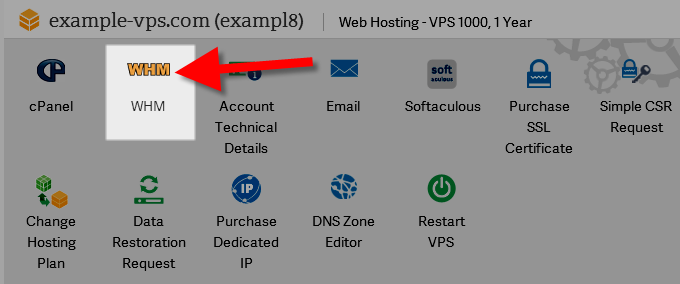
Access WHM from AMP as Root
If you are on a VPS or Dedicated server, you can request root access and log into WHM as the root user in order to unlock special privileges and advanced options. It’s easy. All you need to do is use “root” as the username along with the root password you requested and log in as normal. Once you are logged in as root you will notice a lot of features and options available to you. But remember:
With great power comes great responsibility.
- Log into AMP
- Under the account name, select Root WHM
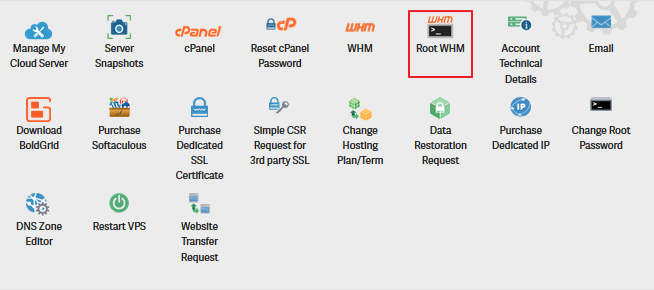
NOTE: You can reset your password using the Change Root Password.
Access WHM from Your Domain
WHM operates over two different ports:
- 2086 (does not use SSL)
- 2087 (Uses SSL)
You can log into WHM using variations of your domain name. Some of the options log you in over an SSL encrypted connection, and others don’t. For security reasons, we recommend you always log in over SSL. The following is a list of various URLs you can use to log into your WHM:
- https://hostname.com:2087 (SSL)
Replace hostname.com above with the hostname of your server.
NOTE: As you are using a secure (SSL) connection, if your hostname uses a self-signed certificate, you may receive an SSL warning. It is safe to accept the warning and continue.
- https://example.com/whm (non SSL)
- whm.example.com (non SSL)
Open WHM in cPanel
If you log into cPanel as the hosting account owner or a reseller, knowing how to access cPanel from WHM prevents you from needing to type in your WHM URL or log into AMP. Below are the steps on how to access WHM through cPanel:
- Log into cPanel
- Select WebHost Manager
Troubleshoot WHM Access
If you are unable to connect to your WHM with example.com/whm or vps####.inmotionhosting.com:2087, the respective ports may be blocked on your local network. Using the whm.example.com URL will go over the proxy port 80. Port 80 is the standard internet port so you should have no problem connecting with whm.example.com.
Congratulations, now you know how to log into your WHM!
If you’re working on the DNS for a cPanel account follow the steps in the Modify the DNS in WHM article to learn how can edit DNS for your accounts.
Learn more from our Managed VPS Hosting Product Guide.
 Enjoy high-performance, lightning-fast servers with increased security and maximum up-time with our Secure VPS Hosting!
 Linux VPS cPanel or Control Web Panel Scalable Website Migration Assistance